
i3D Workbench · Input tool Development builds
VectorLab
SVG vector editor with pan/zoom, shape tools, bitmap import and PLT export.
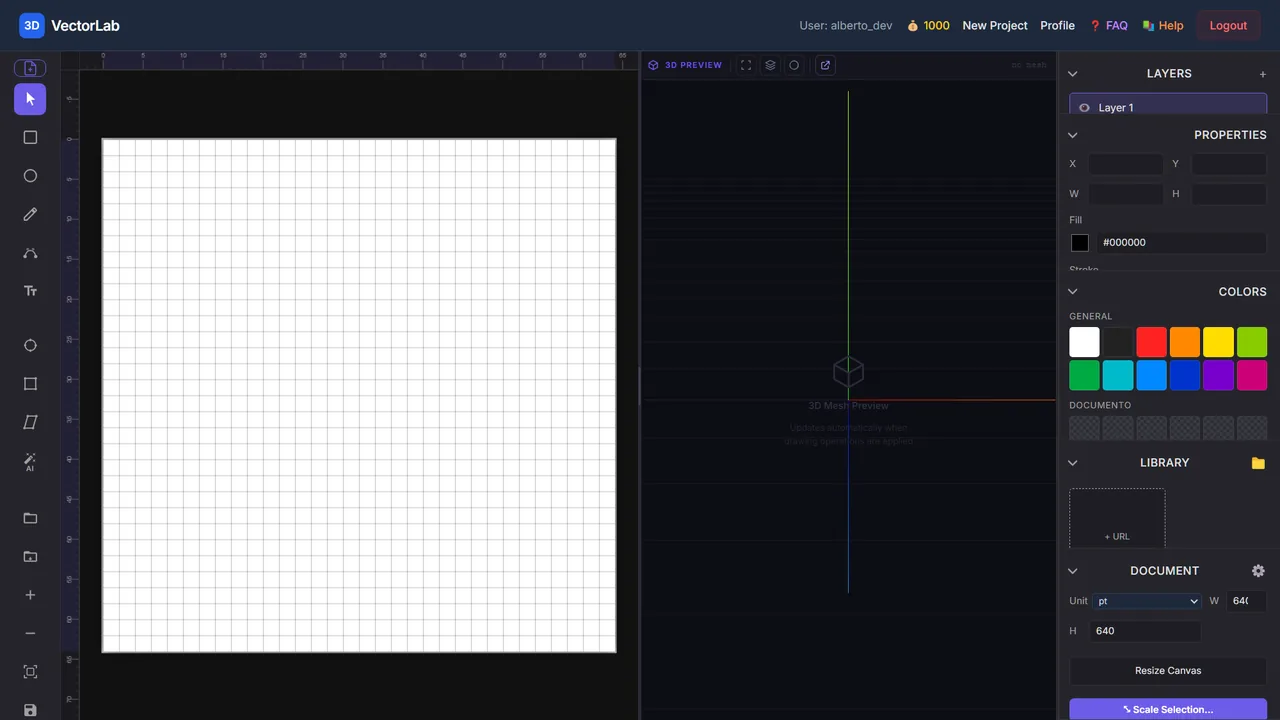
VectorLab is a vector editor that runs inside the i3D Workbench: draw or import SVG artwork, organise it in layers, set document size (A4/A3/Letter/Legal/Tabloid or custom) and units (mm/in), and export SVG or HPGL PLT for cutters and plotters. It is currently available in development builds.
| Group | Input |
|---|---|
| Status | Development builds |
| Input | SVG, PNG, BMP |
| Output | SVG, PLT / HPGL |
| Max upload | 300 MB per file |
| Runs in | Desktop browser with WebGL 2 (Chrome, Edge, Firefox) — computation on Ahaborg's C++ backend |
| Billing | Pay-per-use credits, no subscription |
| Documented in | i3D Workbench User & Reference Manual v2026.10 |
Overview
VectorLab is a full vector editor inside the workbench. Draw or import SVG artwork, organize it in layers, set document size and units, and export SVG or HPGL PLT for cutters and plotters. It is available in development builds; in production it is shown as coming soon.
Step by step
- Open VectorLab. Set the Document size (presets A4/A3/Letter… or custom), unit (mm/in) and resolution.
- Draw with the toolbar tools or Import SVG / Import Bitmap (as a reference layer).
- Select objects (S), move/resize them, edit fill/stroke in Properties; combine shapes with Union.
- Organize work in Layers (visibility, lock, order).
- Export SVG (to keep editing or to feed OtkMaster) or PLT for the plotter/cutter.
Controls
Canvas navigation
- Middle mouse or Space + drag — pan
- Scroll wheel — zoom in/out
- Ctrl+0 — fit to window
Toolbar tools
| Control | Range / values | Default | What it does |
|---|---|---|---|
| Select (S) | — | — | Click to select a shape. Shows bounding box with resize handles. Drag to move. Hold Shift to multi-select. |
| Rectangle / Ellipse / Line (R / E / L) | — | — | Draw basic shapes. Hold Shift while drawing to constrain to square / circle / 45° angle. |
| Pen / Bezier (P) | — | — | Draw freehand paths. Click for corner nodes, click+drag for smooth bezier handles. |
| Text (T) | — | — | Place text objects. Set font, size and style in the properties panel. |
Document panel
| Control | Range / values | Default | What it does |
|---|---|---|---|
| Preset | A4/A3 portrait & landscape · Letter · Legal · Tabloid · Custom | — | Canvas size. |
| Unit | mm · in | — | Working unit for sizes and export. |
| Resolution | — | 10 points/mm | Curve flattening density used when exporting PLT. |
| Resize Canvas / Scale Selection… | — | — | Change the document size, or scale selected objects numerically. |
Import / Export
- Import SVG — open an existing SVG file as editable objects
- Import Bitmap — place a PNG/BMP as a background reference layer
- Export SVG — save the current drawing as SVG
- Export PLT — generate an HPGL PLT file for cutters and plotters
- 3D Preview — shows the mesh when the drawing is sent to a 3D tool
Layers & Properties
Objects are organized in layers. Each layer has a visibility toggle (eye icon) and can be locked. Drag layers to reorder them. The Properties panel edits fill, stroke, stroke width and the colour library.
Tips & tricks — VectorLab
- Set the document unit to mm before importing: SVG files without physical units are interpreted at 96 dpi and may come in at the wrong size.
- Use Union to merge overlapping shapes before exporting to a cutter; overlapping contours are cut twice otherwise.
- Keep reference bitmaps on their own locked layer so they are never exported.
- Hold Shift while drawing for true squares/circles — OtkMaster treats slightly-off ellipses as free curves and generates more blade lifts.
- For plotters, Resolution 10 points/mm is plenty; higher values only enlarge the PLT.
Troubleshooting
The card says “coming soon”.
VectorLab is enabled in development builds only. Use OtkMaster with an SVG prepared in another editor meanwhile.
Works well with
Tools that chain with VectorLab — see the workflows.